How to Convert Image to Vector (SVG & EPS) Offline on Android with Mini Vectorizer
A complete guide to turning raster images into crisp, scalable SVG and EPS vectors directly on your Android phone—no cloud uploads, no desktop software required.
M
MAHESAPP
6 min read · November 25, 2026
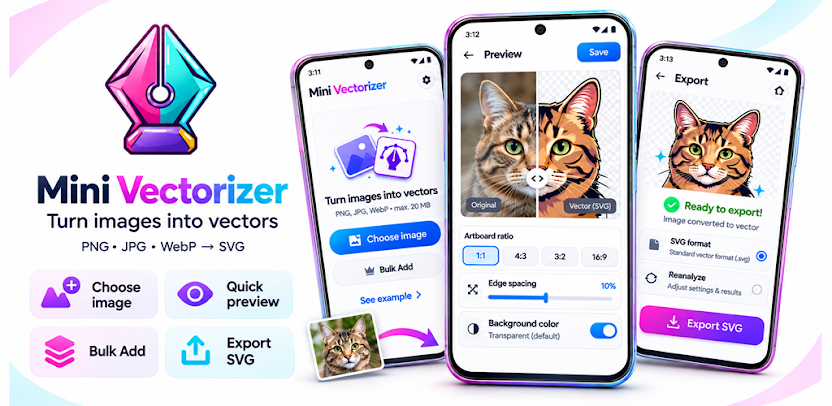
Mini Vectorizer transforms raster images (JPG, PNG, WebP) into scalable SVG and EPS vectors directly on Android.
If you have ever tried scaling up a low-resolution PNG logo or preparing a JPG graphic for a vinyl cutter, you already know the frustration of jagged, pixelated edges. Traditionally, turning a bitmap image into a clean vector required booting up a desktop computer, opening heavy software like Adobe Illustrator or Inkscape, or uploading private client files to ad-heavy online converters.
Mini Vectorizer changes that workflow completely. Built for Android by MAHESAPP, Mini Vectorizer lets you convert JPG, PNG, and WebP images into scalable SVG and EPS vector files completely offline—directly on your phone or tablet. In this guide, we break down what makes it stand out, how its on-device tracing workflow works, and how to get razor-sharp vector output in minutes.
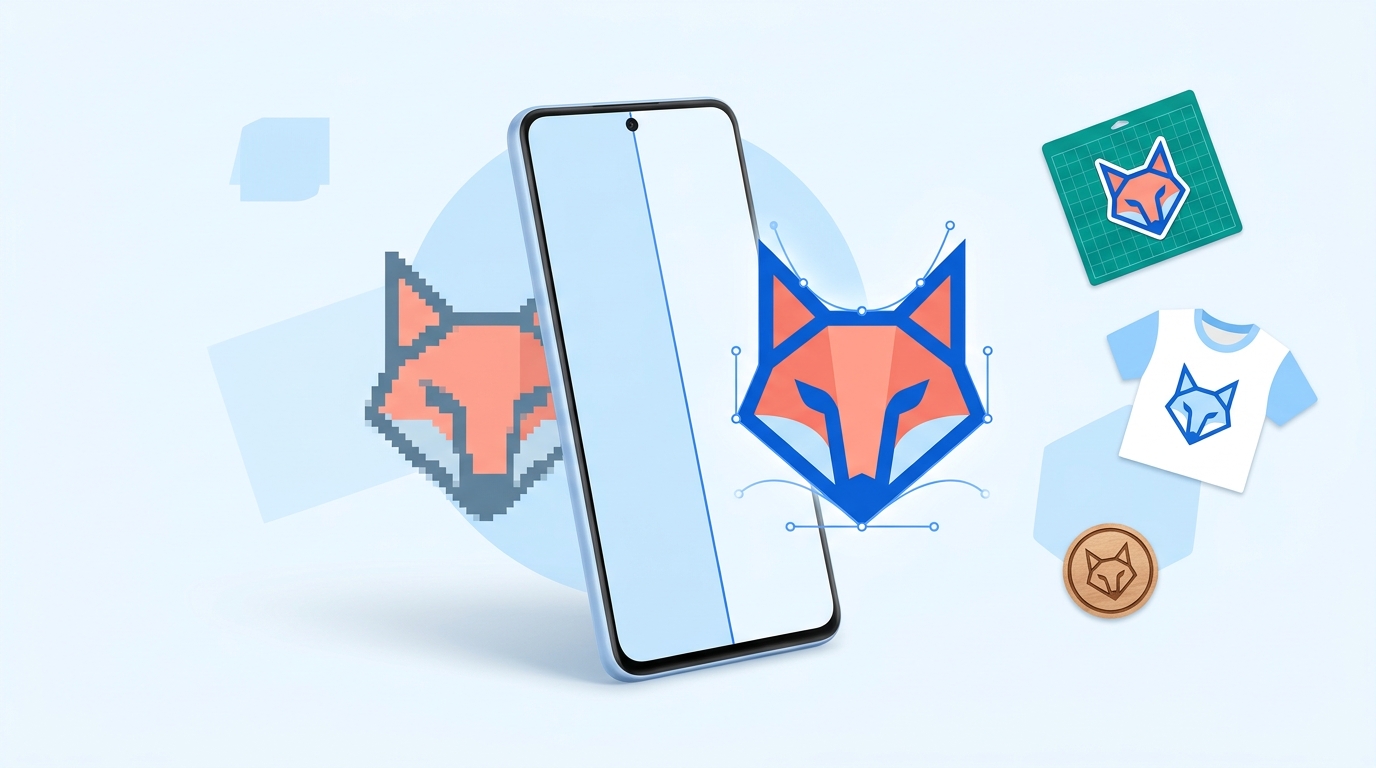
Standard images like JPG, PNG, and WebP are raster (bitmap) formats made of a fixed grid of pixels. When you enlarge them for banners, t-shirts, stickers, or laser engraving, they lose sharpness and turn blurry. Vector formats like SVG (Scalable Vector Graphics) and EPS (Encapsulated PostScript) store artwork as mathematical paths and Bezier curves instead of pixels—so you can scale a logo from a tiny favicon to a billboard with zero quality loss.
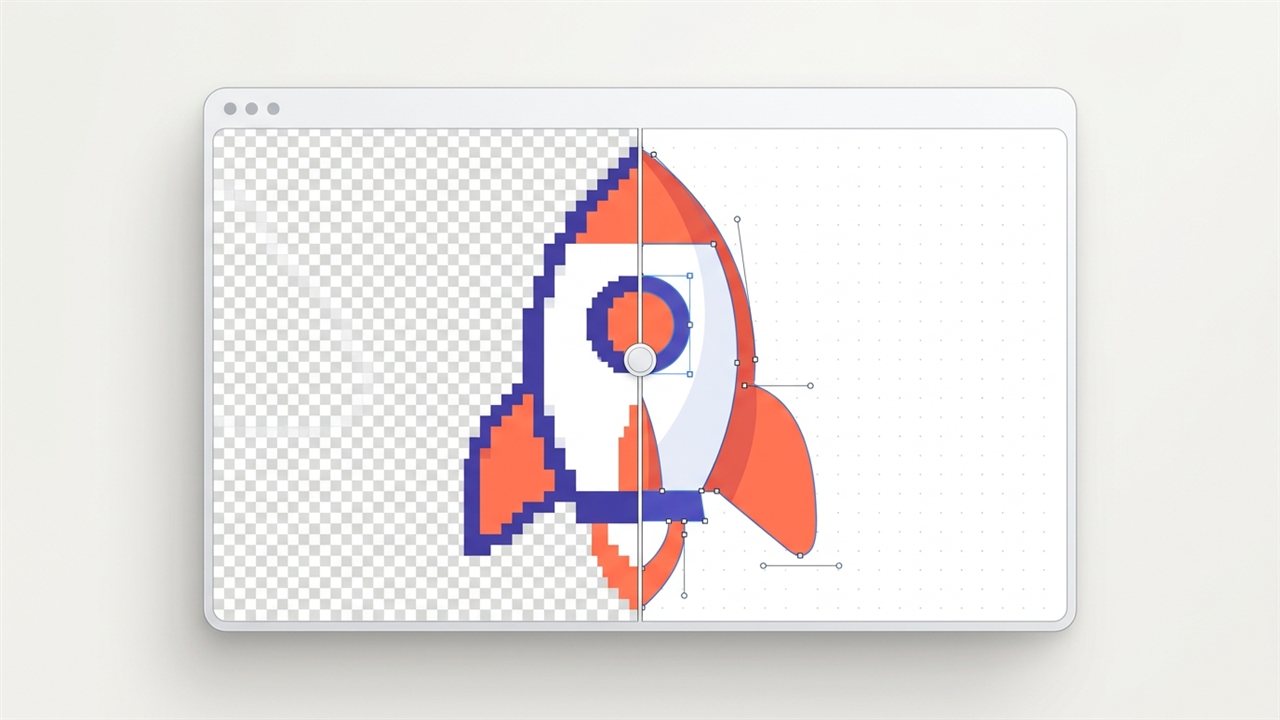
Raster vs. Vector at high zoom: pixelated bitmap edges (left) compared with smooth, infinitely scalable Bezier paths (right).
JPG / PNG / WebP (Raster — Pixels): Best for photos, quick previews, and fixed-size web thumbnails. Loses clarity when enlarged.
SVG (Vector — Paths): Ideal for web icons, UI design, Cricut Design Space, Silhouette Studio, Figma, and Inkscape.
EPS (Vector — Paths): Built for print-ready artwork, apparel printing, microstock submissions, Adobe Illustrator, and CorelDRAW.
What Makes Mini Vectorizer Different?
Most mobile image-to-SVG apps are thin wrappers around remote web servers. They require an internet connection, impose slow upload queues, and force you to send confidential logos or client sketches to third-party clouds. Mini Vectorizer takes an offline-first, creator-focused approach:
1. 100% Offline, On-Device Processing
Every conversion runs locally on your Android device. Your images never leave your phone—making the workflow faster on the go and safe for NDA client logos, brand assets, and unpublished artwork.
2. Multi-Format Input and Pro Vector Output
Import JPG, PNG, or WebP files and export clean SVG or EPS vectors ready for Adobe Illustrator, Affinity Designer, CorelDRAW, Inkscape, Cricut Design Space, Silhouette Studio, and laser-engraving software.
3. Optional 2x Upscaling for Low-Res Sources
Working with a tiny or slightly blurry PNG? Enable Mini Vectorizer's 2x upscaling option before tracing to sharpen edges and recover cleaner curves from low-resolution source images.
4. Automatic & Manual Tracing Fine-Tuning
Use automatic presets when you want instant one-tap conversion, or dial in manual tracing parameters to balance path smoothness, color fidelity, and file complexity.
5. High-Zoom Original vs. Vector Comparison
Before exporting, inspect your results on a transparency checkerboard grid using Original vs. Vector comparison views—with zoom levels up to 433%—so you can verify edge precision and catch stray artifacts early.
6. Batch Conversion & ZIP Export
Need to vectorize an entire icon pack, sticker sheet, or batch of sketches? Select multiple images at once, convert them in a single run, and export files individually or bundled inside a clean ZIP archive.
Step-by-Step: How to Convert JPG or PNG to SVG/EPS on Android
Follow these six quick steps to turn any bitmap graphic into a crisp vector with Mini Vectorizer:
Install Mini Vectorizer: Download the app from the Google Play Store.
Pick your source image(s): Import one or multiple JPG, PNG, or WebP files from your Android gallery or file manager.
Enable 2x Upscaling (optional): If your source graphic is small or has soft edges, turn on 2x upscaling to sharpen edges prior to tracing.
Choose Auto or Manual Tracing: Start with Auto mode for flat logos, icons, and line art, or adjust manual settings to control detail level and path smoothness.
Inspect with Zoom Comparison: Toggle between the Original and Vector preview on the transparency grid and zoom in to verify curve cleanliness.
Export as SVG, EPS, or ZIP: Save your final SVG or EPS vector directly to your device, or export multiple converted assets together as a ZIP archive ready to share or open in your design tool.
Who Should Use Mini Vectorizer?
Crafters & Vinyl Cutters: Quickly turn PNG clipart and hand-drawn sketches into cut-ready SVGs for Cricut and Silhouette machines.
Graphic Designers & Brand Freelancers: Convert client-sent JPG logos into editable SVG/EPS vectors right from your phone while away from your desk.
Print-on-Demand & Merch Makers: Prepare crisp, scalable graphics for DTF, screen printing, embroidery, and laser engraving.
Microstock Contributors: Batch-convert clean illustrations into EPS/SVG files and organize them cleanly for desktop or mobile submission workflows.
Frequently Asked Questions (FAQ)
Does Mini Vectorizer work without an internet connection?
Yes. Mini Vectorizer processes all image-to-vector conversions locally on your Android device, so it works completely offline without uploading your files to external servers.
What file formats does Mini Vectorizer support?
You can import JPG, PNG, and WebP bitmap images and export scalable SVG and EPS vector files, either individually or bundled into a ZIP archive.
Can I convert multiple images to SVG at the same time?
Yes. Mini Vectorizer supports batch conversion, allowing you to process multiple raster graphics in one run and export all converted vectors together.
Are the exported SVG and EPS files compatible with Adobe Illustrator and Cricut?
Yes. Exported SVG files work smoothly with Cricut Design Space, Silhouette Studio, Figma, Inkscape, and web browsers, while EPS files are widely supported by Adobe Illustrator, CorelDRAW, and print workflows.
Ready to Vectorize Images on Your Android Phone?
Skip slow web converters and keep your design workflow fast, private, and portable. Download Mini Vectorizer on Google Play or view full details on the official product page below.